


Edit Microsoft Teams & Other Meeting Recordings
Learn how to import Microsoft Teams recordings, other meeting recordings, or webinars into Camtasia Editor to remove unwanted sections, fix audio, and add polish so that it is ready to share.

Learn how to import Microsoft Teams recordings, other meeting recordings, or webinars into Camtasia Editor to remove unwanted sections, fix audio, and add polish so that it is ready to share.

Camtasia Editor makes it simple to turn your meetings, webinars, and training sessions into polished, professional videos.
Once your edits are complete, you can easily save your video as a local file (MP4) or send it directly to popular destinations like YouTube and Screencast.
Note: This tutorial covers how to import general meeting recordings. To import Zoom cloud recordings, see Edit Zoom Recordings.
 > Import Media or double-click in the Media Bin
Camtasia Editor makes it simple to turn your meetings, webinars, and training sessions into polished, professional videos. Try some of these common edits for meeting recordings:
Trim out the wait time or conversations recorded before the meeting begins.
Click and drag the ends of a clip to easily remove or restore footage.
Quickly identify sections to remove to streamline your content, such as set up, distractions, irrelevant conversation, etc. Camtasia Audiate transcribes your audio into plain text, making any issues easy to spot and remove. Delete words, mistakes, or sections of your video.
The edits are automatically synced to your Camtasia Editor project. This speeds up the editing process instead of having to play back audio in longer recordings.
Camtasia Audiate automatically recognizes filler words, such as “Ums” or repeated words, and pauses in speech. Click the Suggested Edits dropdown in the upper-left corner to automatically apply the recommended edits to these filler words and pauses.
Add audio points to adjust the volume for a part of the recording. Use this for sections where a speaker has too low or high audio levels.
See Edit Audio.
Tip: Save time editing with variable speed shortcuts.
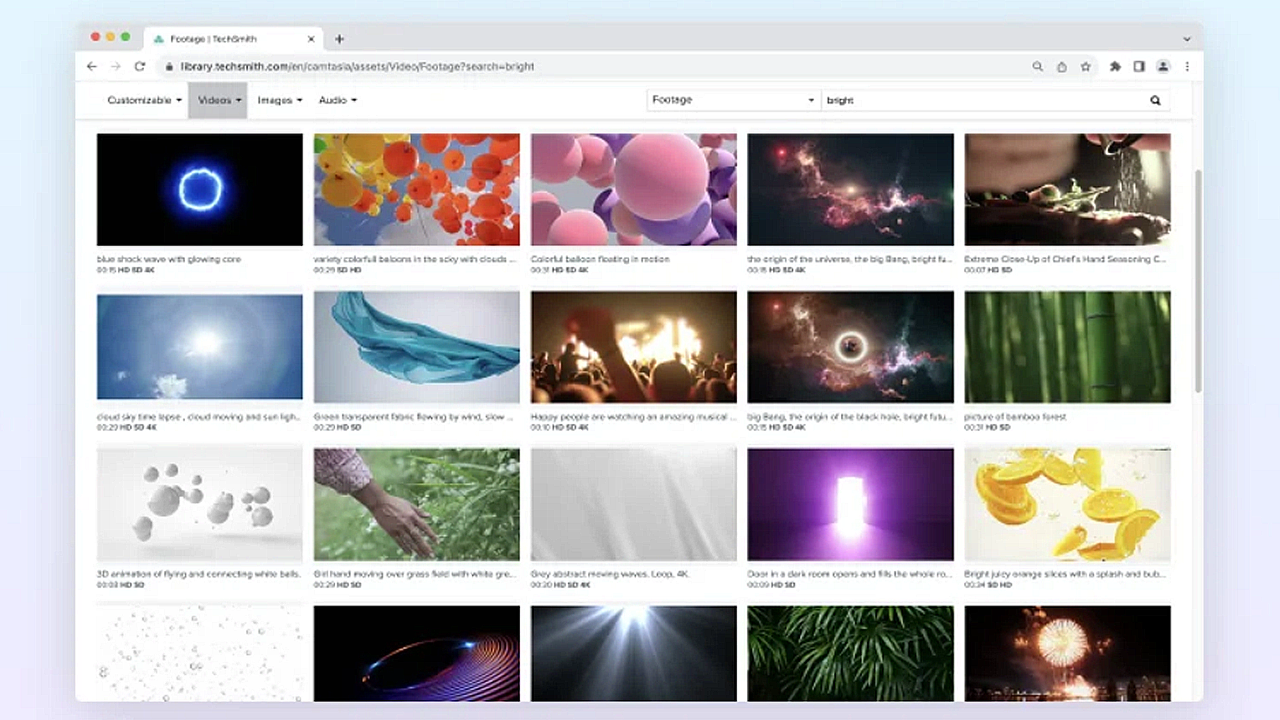
Add a branded intro/outro, lower-thirds, titles, or background music from the Camtasia Assets.

To use one of Camtasia’s premade titles for your intro or outro:
To learn more about Camtasia Asssets, see Enhance Your Video with Camtasia Assets.
Provide context or call attention to important parts in the recording by adding annotations, text, or callouts. Use shapes or blurs to hide sensitive information, such as attendee names.
Save time and automatically generate closed or dynamic captions based on the audio transcription. See Add Closed Captions or Add Dynamic Captions.
j
To share your edited recording, click Export and select the option that works best for you.
Select Local File to save to your computer or share to another destination like YouTube.
Unleash the world’s most powerful screen recorder and video editor.
* Already a Camtasia Editor user? Learn how to update to the latest version.