


Edit Audio
Learn how to edit audio on the timeline in Camtasia Editor or send audio to Camtasia Audiate for text-based editing.

Learn how to edit audio on the timeline in Camtasia Editor or send audio to Camtasia Audiate for text-based editing.

Audio quality is just as important as video quality, if not more so.
Tip: Start with great audio.
| Option | Details |
|---|---|
| Select audio on the timeline | Double-click a clip with audio. The clip turns green and the audio bar appears. |
| Silence a section of audio | Use the playhead to make a selection. Right-click the selection and choose Silence Audio.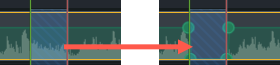 |
| Add and move audio points to adjust volume of parts of a clip | Double-click on the audio bar to add points. Click and drag the audio points up, down, or across the audio bar. |
| Fade audio in or out | To create a fade, add three audio points to the audio bar. Drag points up or down to create the desired fade.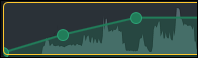 -OR- Click the Audio tab and drag the Fade In/Fade Out effects to the clip on the timeline. See Add Audio Effects. |
| Delete audio points | Right-click an audio point and select Delete or Remove All Audio Points. 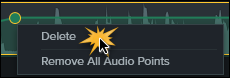 |
| Separate system audio from screen recording | Right-click audio and select Separate Video and Audio. |
| Change the look of the waveform (Windows only) | Select Edit > Preferences > Program tab > Mirror waveform. |
| Save audio as M4A, MP3 (Windows only), or WAV | To export an audio file, select Share > Export Audio Only. See Export an Audio File. |
| Apply Mix to Mono to have audio in both channels | Select audio clip on timeline and click Properties button > Audio subtab  > Mix to Mono checkbox. > Mix to Mono checkbox. |
| Adjust audio level of all selected clips | Select audio clip on timeline and click Properties button > Audio subtab . Drag the Gain slider to adjust the clip’s audio level. -OR- Drag the audio bar up or down.  |
| Adjust the audio level for the whole project | Click the volume indicator below the Properties button. Drag the slider to adjust the project’s audio level. |
Unleash the world’s most powerful screen recorder and video editor.
* Already a Camtasia Editor user? Learn how to update to the latest version.