

Set the Tone with Background Music
Learn how to add background music from Camtasia Assets or another audio file to set the tone for your video.

Learn how to add background music from Camtasia Assets or another audio file to set the tone for your video.

Background music can help set the perfect tone for your video and make viewing more engaging and enjoyable for your audience. The right music can make your video feel:
Explore and select from hundreds of royalty-free instrumental and vocal audio tracks in various moods, styles, and genres directly in Camtasia Editor.

Note: To learn how to download assets in Camtasia Editor version 2023.2.0 and earlier, see Find Camtasia Assets on the Website tutorial.
 and
 buttons to browse the assets. Or click See All to view additional assets.


To learn more about editing audio on the timeline, see Edit Audio.
To import your own audio files (MP3, M4A, WAV, and WMA) from your computer to use as background music:
 > Import Media or double-click in the Media Bin.

To learn more about editing audio on the timeline, see Edit Audio.
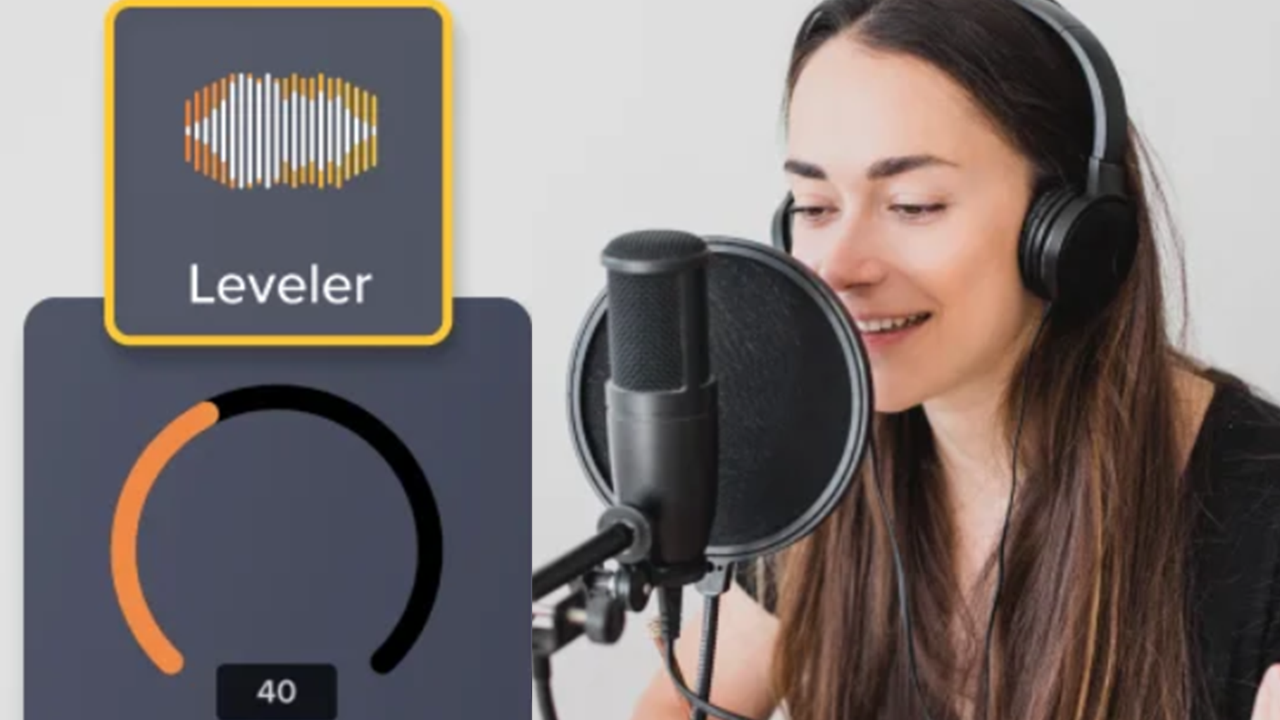
Ensure your background music doesn’t drown out or distract from the voice narration in your video. Apply the Emphasize audio effect to voice narration clips to automatically decrease the volume of all other audio tracks.
To apply the Emphasize effect:

Note: Your microphone recording may be combined on a track with your camera recording.


To learn more about Audio Effects in Camtasia Editor, see Add Audio Effects.
Unleash the world’s most powerful screen recorder and video editor.
* Already a Camtasia Editor user? Learn how to update to the latest version.