



Add Effects
Add effects such as borders, shadows, or color filters to enhance or add polish to your images.

Add effects such as borders, shadows, or color filters to enhance or add polish to your images.

Note: Effects are only available for images. Share your video to Camtasia Editor to enhance it with annotations and effects.
Apply effects to an image after capture:



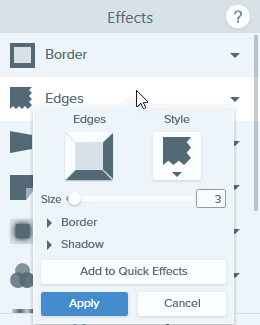
 button to customize the settings.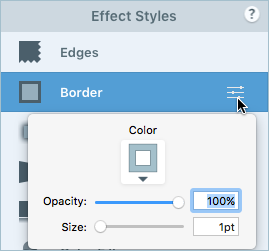
Tip: Apply an effect to a selection of an image (Windows only).
On Windows, you can also apply effects to only part of an image. Click the Selection tool  in the Snagit Editor toolbar, then click and drag to draw the selection on the canvas. Follow the steps above to apply a Quick Effect or to customize and apply an effect to your selection.
Note: Effects applied in Snagit Mac are not currently supported by Snagit Windows when the image is saved as a SNAGX file. They will not display and will be lost if you open and save the SNAGX file in Snagit Windows. To preserve effects when sharing to Snagit Windows, save the file as a .png, .jpg, or other image file type.


Tip: Save a custom effect as a Quick Effect or Favorite for future use.
Windows: After you edit the settings, click the Add to Quick Effects button in the settings dropdown.
Mac: As you edit the settings, a new effect appears at the bottom of Quick Effects. Click the  icon to save the effect for future use. Click the
  icon to save the effect to Favorites.
Border
Add a border to the outside of an image.
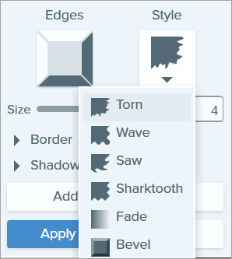
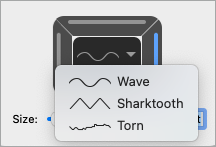
Edges
Add an edge effect to one or more sides of an image.
Capture Info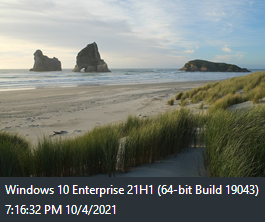
Automatically add information to your screenshots such as application name, capture date and time, and operating system.
Note: Capture Info can only be added to images captured with Snagit.
Page Curl (Windows)
Add an effect that curls the corner of an image. Click the Apply button to apply the effect to the image.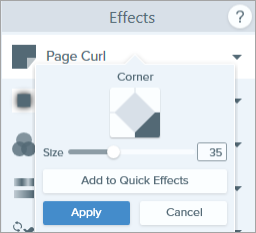
Shadow
Add a shadow effect to a side or around an entire image.

Perspective
Distort an image to give the appearance of being viewed from a different angle.
Reflection (Mac)
Add a mirror-like reflection to an image.
Filters (Windows)
Apply a filter effect over the entire image. Select a filter type in the dropdown:
Color Filters (Mac)
Apply a filter effect over the entire image. Change the following image colors with this effect:
Color Adjustment
Enhance or correct the color and tonality (lightness, darkness, and contrast) in an image. Change the following properties for this effect:
Color Replacement (Windows)
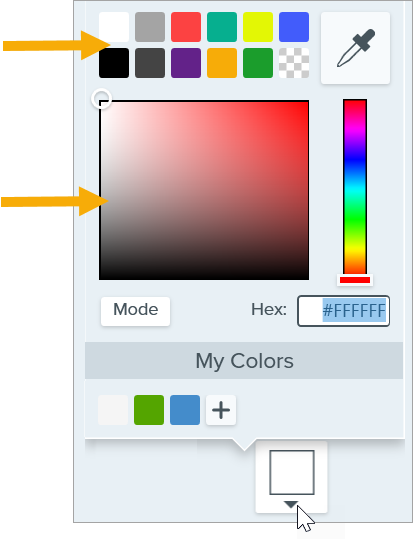
Swap two colors in an image or replace one color with another color. Click the  to select colors to swap before you apply this effect.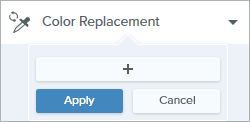
Spotlight and Magnify (Windows)
Draw attention to an area in an image by highlighting and enlarging the area.
For Mac, see the Spotlight Tool.
Watermark (Windows)
Add text, a logo, or copyright information to an image for identification or to discourage unauthorized use.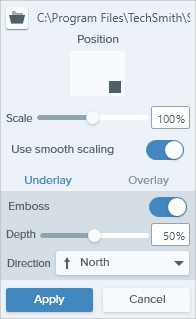
Change the following properties for this effect:
 to import an image file.

Fade (Mac)
Apply a gradual dimming to the edges of an image.
The best screen capture software for professionals
* Have Snagit 2024 or earlier? Check out our previous version help.