
TechSmith ®
TechSmith ®

Grab & Edit Text

Snagit uses optical character recognition (OCR) to detect text in images and convert to editable text.

Grab & Edit Text
 

Grab Text When You Capture

Capture text from anywhere on the screen to paste into a document or another application.
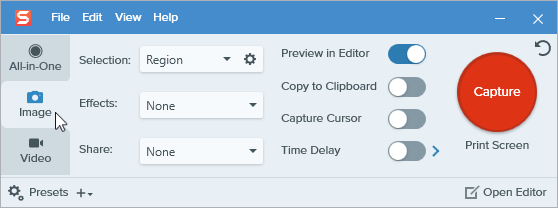
  1. In the Capture window, click to select the Image tab.
    Image tab on the Capture window
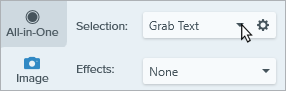
  2. In the Selection dropdown, select Grab Text.
    Grab Text selection option
  3. Click the Capture button or press Print Screen (Windows) or Shift+Ctrl+C (Mac).
    Capture button
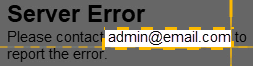
  4. The orange crosshairs appear. Click and drag to select the desired area on the screen.
    Grab Text selection
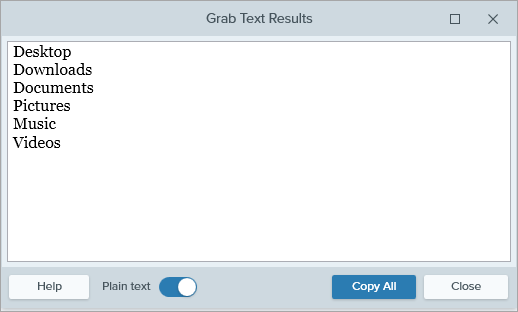
  5. The Grab Text Results dialog opens in Snagit Editor. Click Copy All and paste text into another application.

Note: To turn off Grab Text for future captures, change the Selection option in the Capture window.

Grab Text from an Image

Copy and paste text from an image into a text editor such as Notepad, Microsoft Word, or an email. Snagit offers two options for copying the text in an image:
Grab All Text in an Image

 
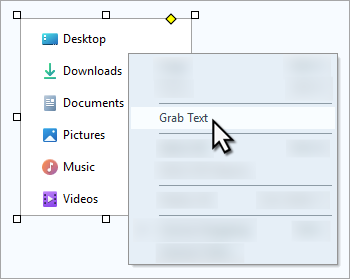
  1. In Snagit Editor, right-click (Windows) or control-click (Mac) an image on the Canvas and select Grab Text.
    Grab all text example
  2. To remove formatting like font and text color, in the Grab Text Results dialog, enable the Plain text (Windows) or Make Plain Text (Mac) option.
    Grab Text Results dialog
  3. Click Copy All.

Snagit copies the text to the Clipboard for pasting into a document or other application.

Grab Text from Part of an Image

This option captures smaller areas of text within an image to improve the accuracy and quality of the text recognition.

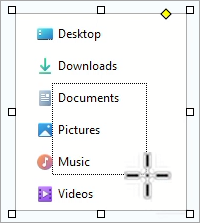
 
  1. In Snagit Editor, click the Selection tool.
    Selection tool
    Note: If the tool is not visible in the toolbar, click the More dropdown. To customize your toolbar, see Customize the Snagit Toolbar.
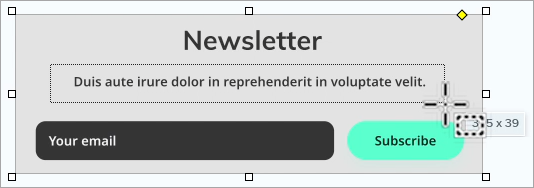
  2. Click and drag to select the text.
    Example of text selection
  3. Right-click (Windows) or control-click (Mac) the selection and select Grab Text.
  4. To remove formatting like font and text color, in the Grab Text Results dialog, enable the Plain text (Windows) or Make Plain Text (Mac) option.
    Grab Text Results dialog
  5. In the Grab Text Results dialog, click Copy All.

Snagit copies the text to the Clipboard for pasting into a document or other application.

Edit Text in an Image

Replace or edit the text in an image to fix typos, update text, or change formatting such as font, size, or color.

Note: This tutorial describes how to edit text that is already in an image. To add text to an image or to edit text you added to an image, select the Text tool from the toolbar. See Text Tool.

 
  1. In Snagit Editor, click the Selection tool.
    Selection tool

    Note: If the tool is not visible in the toolbar, click the More dropdown. To customize your toolbar, see Customize the Snagit Toolbar.


  2. Click and drag to select the part of the image that includes the text you want to edit.
    Select text
  3. Right-click (Windows) or control-click (Mac) the selection and select Edit Text.
  4. Double-click on the selection to place your cursor in the editable text, and complete any of the following:
    Edit text example
    • Edit formatting: Edit text color, font, size, and other formatting in the Tool Properties.
    • Add new text: At the cursor, type to enter text.
    • Replace text: Click and drag to select, then type to replace the selected text.
    • Delete text: Click and drag to select, then press Delete.

Grab Text from a Video (Mac)

Grab text from a video to copy and paste into other applications.

  1. In Snagit Editor, play back a video capture.
  2. Click the Pause button.
  3. Control+click the Canvas and select Grab Text.
  4. In the Grab Text Results dialog, edit the text (optional).
  5. Click Copy All and paste the text into another application.
Snagit Icon Logo

Get Snagit

The best screen capture software for professionals

* Have Snagit 2024 or earlier? Check out our previous version help.
All Snagit Tutorials