


Reuse Media Across Projects (Library)
Learn how to create and manage libraries to speed up video creation in Camtasia Editor, maintain consistency across your videos, and share assets with your team.

Learn how to create and manage libraries to speed up video creation in Camtasia Editor, maintain consistency across your videos, and share assets with your team.

The library stores assets and media to reuse across Camtasia video projects. Create custom libraries to save intros, animated backgrounds, icons, titles, music, groups, annotations, and more. Export libraries to share assets with your team.
To open the library, select Media tab > Library subtab. 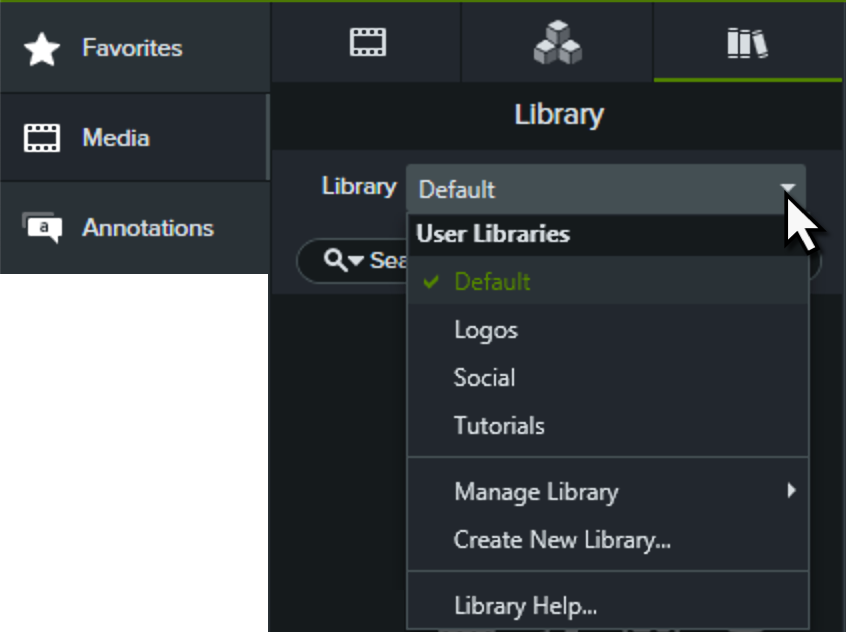
To add a library asset to your video, complete one of the following:
Get tips on how to position media or assets.
See Position Media on Canvas or 3 Keys to the Camtasia Timeline for recommendations on how to position media on the canvas or timeline.
| Create a Custom Library Organize assets based on a project, video type, asset type, or brand. |
|
| Add an Asset or Group to a Library |
Tip: Best practices when naming assets |
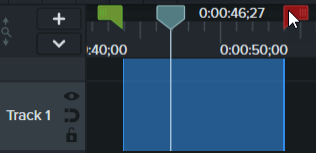
| Add a Selection from the Timeline to the Library |
|
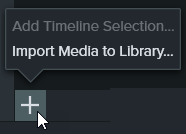
| Add Media from Your Computer to the Library |
|
| Add Media from the Media Bin to the Library |
|
| Add a Folder to the Library |
|
| Move Assets or Folders within a Library |
Note: To nest a folder in a library, click and drag the folder onto another folder. |
| Move Assets or Folders to Another Library |
|
| Delete an Asset or Folder | Right-click (Windows) or Control+click (Mac) the asset or folder in the library and select Delete. |
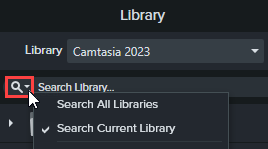
Search within a library or across all libraries to find assets based on file names.
| Search for Assets in Library |
|
| Sort Assets | Right-click (Windows) or Control+click (Mac) a folder or asset in the library and select Sort By. You can sort by name, type, date added, date used, or reverse the order. |
| Preview an Asset | Double-click the asset in the library. A preview window appears. |
To maintain a consistent video style across a project or organization, share your library assets with others.
| Export a Library |
|
| Import a Library |
|
Note: To back up and share Camtasia Editor resources including templates, shortcuts, libraries, themes, and presets to another user or computer, create a Camtasia Package (.campackage). See Package & Share Camtasia Editor Resources.
Unleash the world’s most powerful screen recorder and video editor.
* Already a Camtasia Editor user? Learn how to update to the latest version.