Take Control with New Editing Features in Camtasia
Manually set playhead time and paste images from the clipboard directly into the camtasia editor for faster, more precise editing.
Camtasia’s editor now gives you more flexibility and control with two powerful updates:
Set the playhead time manually: Click the current time value beneath the canvas and enter a specific time to jump precisely to where you need to edit.Paste images directly from the clipboard: Easily paste images from the Windows clipboard into the camtasia editor to streamline your workflow.
💚 Why you’ll love these features:
Edit faster with precise playhead positioning.Simplify your workflow by pasting images without extra steps.Save time and stay focused on creating polished content.
Explore these new editor updates and make your editing process smoother than ever!
Enhanced IT Control with Dynamic Captions Access Restrictions
Added support in the TechSmith deployment tool to restrict users from accessing dynamic captions.
Enhanced Dynamic Captions and Accessibility Improvements
Users are now prompted to name their preset when creating a dynamic captions preset.Added dynamic captions to the tools submenu within the view menu.The dynamic captions transcript now displays the name of the transcript’s source media.dynamic captions styles will now be shown immediately in the captions tool panel after being imported from a Camtasia package.Improved text contrast for empty states in tool panels.Improved tool-tips for the captions tool panel.Added keyboard shortcut for accessing the dynamic captions tool.Fixed a potential performance problem by queuing audio transcriptions when needed.Improve performance of selecting a media with a large dynamic caption transcript.
Fixed Transcription, Media Bin, and Captions Panel Bugs
Deleting a word from a dynamic caption transcription no longer leaves a space in the rendered caption.Fixed a startup crash that could occur if a user’s processor does not support instructions used for fast transcription. NOTE: Processors without that support will experience significantly reduced performance when transcribing speech to text.Fixed an issue which caused “Dimensions: 0 x 0” in the Media Bin hover tooltip for image files.Fixed an issue where long recordings could cause the UI to hang for several seconds when the mouse hovered over the clip in the Media Bin.Fixed a bug that could prevent the Captions tool panel from opening when a Dynamic Captions user preset is created.Fixed a bug that could prevent some ProRes MOV files from being decoded properly.Localization fixes.
Bring Your Words to Life with AI-Powered Live Captions
Use AI-powered live captions in Camtasia to display spoken words on the screen in real-time, with customizable styles and multilingual support.
Camtasia’s new Dynamic Captions feature, powered by AI, transforms how you connect with your audience by showing every spoken word on-screen as it’s spoken. This real-time captioning not only enhances comprehension but also ensures your content is accessible to a broader audience.
Customize your style
Use preset designs for instant captions or adjust the properties panel to create captions that perfectly match your brand’s aesthetic.
Support multiple languages
Reach global audiences with captioning options in a variety of languages.
Streamline your workflow
Skip the time-consuming manual process of adding captions and let AI handle it for you.
💡 Ways to use dynamic captions:
Create polished tutorials or training materials with real-time subtitles for clarity.Add an engaging visual layer to presentations or videos for better viewer focus.Deliver multi-language content for international teams or audiences.
Whether you’re crafting instructional videos, professional presentations, or educational content, dynamic captions ensures your message is clear and captivating—every time.
Ready to try it for yourself?
View Tutorial
Capture Smoother, Sharper Recordings with the New Engine
Capture higher frame rates and resolutions with Camtasia’s new, improved screen recording engine.
Camtasia now features a powerful new recording engine designed to deliver higher frame rates and higher resolution screen recordings. Whether you’re capturing detailed tutorials or visually rich content, your recordings will look smoother and more polished than ever.
💚 Why you’ll love the new recording engine:
Achieve sharper visuals with higher resolution recordings.Create professional-grade videos with smoother frame rates.Elevate your content quality without extra effort.
Experience the difference with Camtasia’s new recording engine and take your screen recordings to the next level!
Simplify Your Workflow with Rev Enhancements
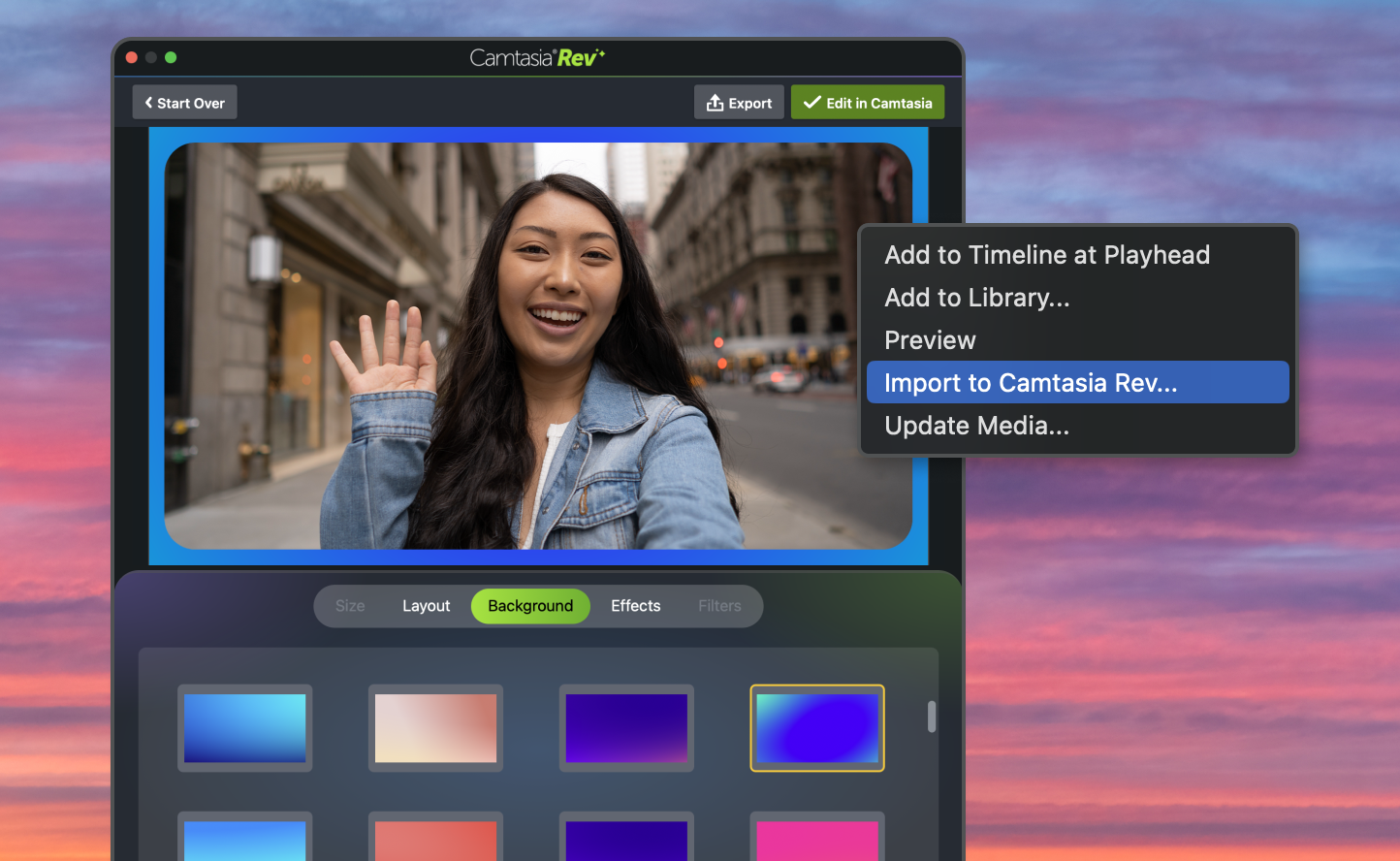
Enhancements to Camtasia’s Rev workflow make it easier to refine layouts, reformat projects, and speed up video production.
New enhancements to the Rev workflow in Camtasia let you effortlessly manage and refine your projects. Send both new and existing media through the Rev workflow to explore quick layout options and save time during your editing process.
💡 Ways to use Rev workflow enhancements:
Quickly reformat older projects to align with updated branding or styles.Experiment with different layouts to create visually compelling video designs.Streamline workflows for faster video production, whether working on tutorials, presentations, or marketing content.
With these enhancements, you’ll have greater flexibility to tweak layouts and achieve polished results—without missing a beat.
Ready to try it for yourself?
View Tutorial
Add Progress Bars and Timers to Your Videos
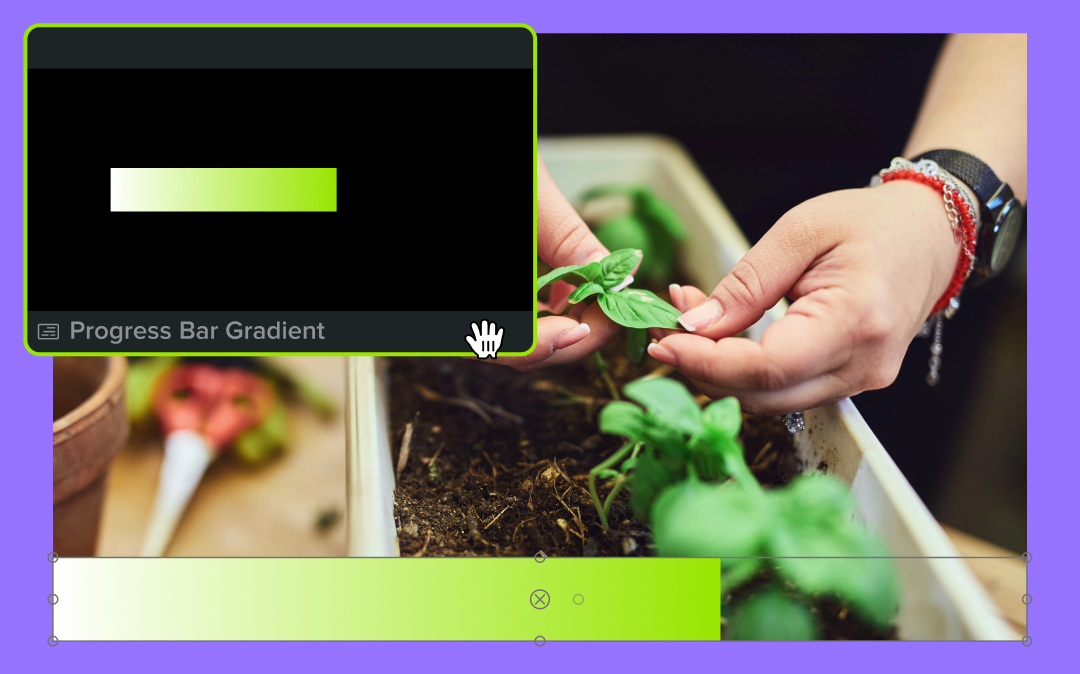
Add customizable progress bars and countdown timers in Camtasia to show time progression and keep viewers engaged.
Camtasia now makes it simple to show time progression with customizable progress bars and countdown timers. Whether you’re creating tutorials, presentations, or instructional content, these elements help keep your audience engaged and informed.
💡 Ways to use progress bars and timers:
Highlight video duration or countdowns for better pacing.Customize styles to match your branding or content.Add clarity and engagement to tutorials, demos, or event recaps.
Use progress bars and timers to keep your viewers on track and elevate your content!
Create Dynamic Backgrounds with the New Tiling Effect
Use Camtasia’s tiling visual effect to create custom animated backgrounds with logos, images, or videos in a repeatable pattern.
Camtasia now includes a tiling visual effect, allowing you to create custom animated backgrounds by repeating a logo, image, or video in a seamless pattern. Adjust the size and spacing to perfectly fit your design, giving you endless creative possibilities for your projects.
💡 Ways to use the tiling effect:
Design eye-catching backgrounds with your branding or visuals.Add unique style to your videos with customizable patterns.Save time creating professional, animated layouts directly in Camtasia.
Try the tiling visual effect today and bring a fresh, polished look to your videos!
Make Your Text Stand Out with Customizable Outlines
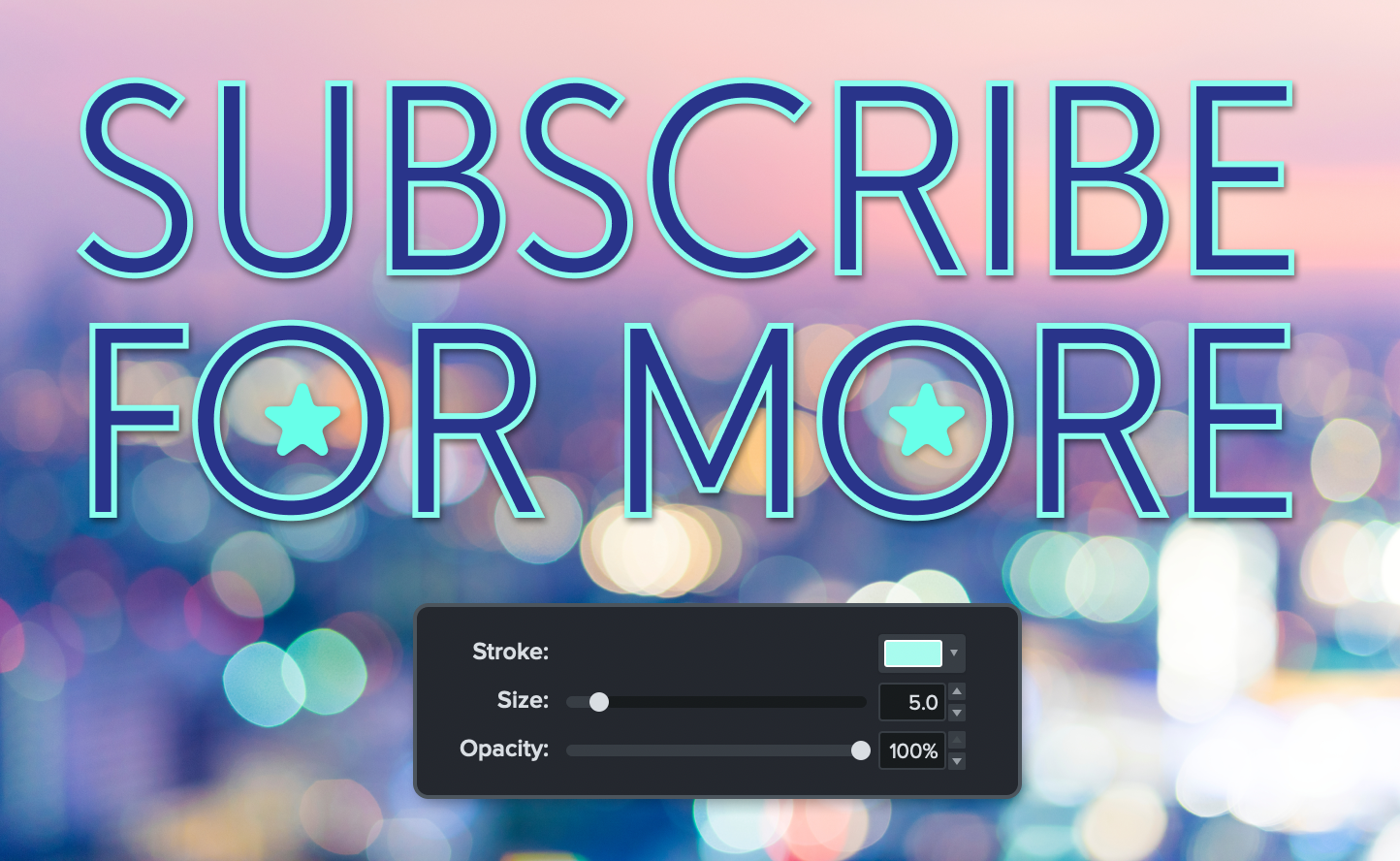
Add customizable outlines to your text in Camtasia with the new text stroke feature for bold, standout visuals.
Camtasia now lets you add an outline to any text, giving you more control over how your text appears on screen. Customize the color, size, and opacity of the outline to perfectly match your design or highlight key points in your videos.
💡 Ways to use text stroke:
Make text pop against any background for better visibility.Customize outlines to align with your video’s style or branding.Draw attention to important details with bold, clear text effects.
Try the new text stroke feature today and add an extra layer of polish to your content!