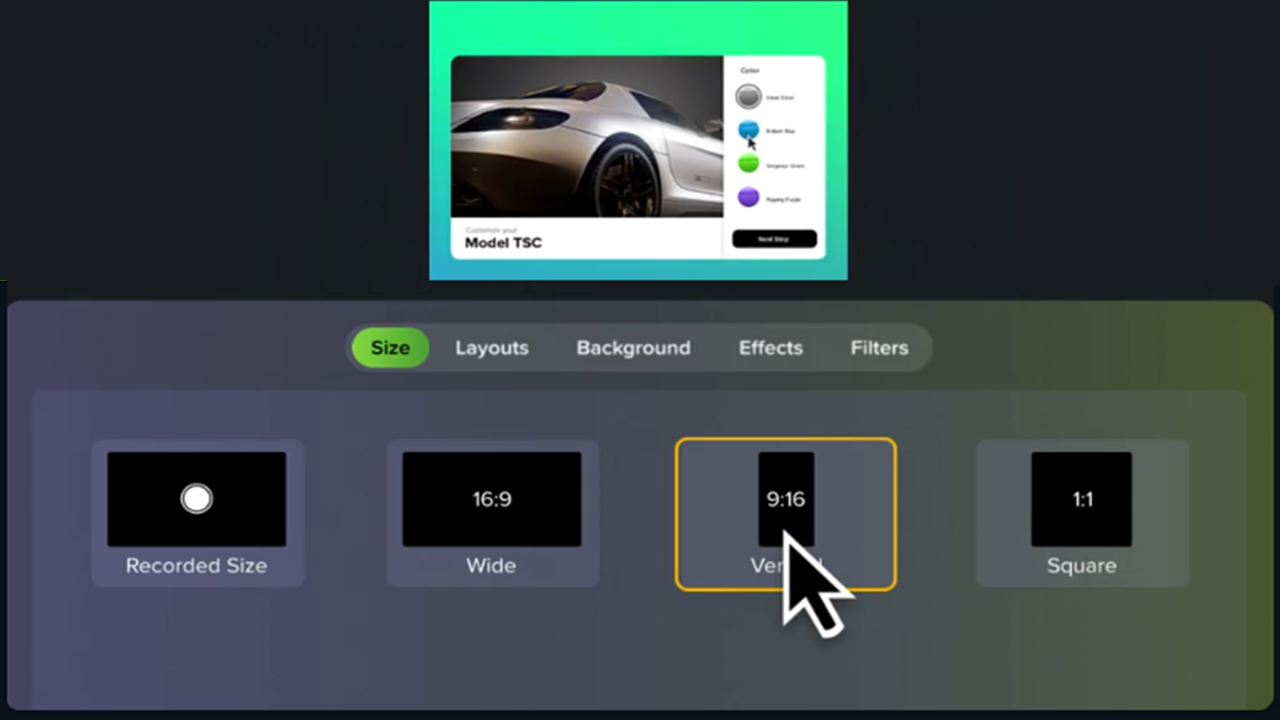
Vertical videos are commonly used by creators as short form content for YouTube Shorts, Instagram Reels, and other social media platforms. This video style normally includes:
- A visual and text hook to immediately grab viewers’ attention to stop the scroll within the first 3 seconds of viewing.
- Content and video techniques that maintain engagement.
- A call-to-action to wrap up the video.
9:16 (1080×1920) is a common aspect ratio for most vertical videos.
Create a Vertical Video from Rev Layouts
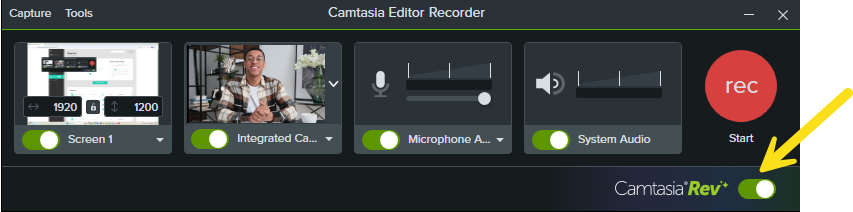
- Record your screen and camera in Camtasia Recorder. Make sure to have the Camtasia Rev toggle on.
- After recording, Camtasia Rev opens. On the Look and Layout tabs, choose one of our professionally-designed layouts in the Vertical section. Click See All to show more.
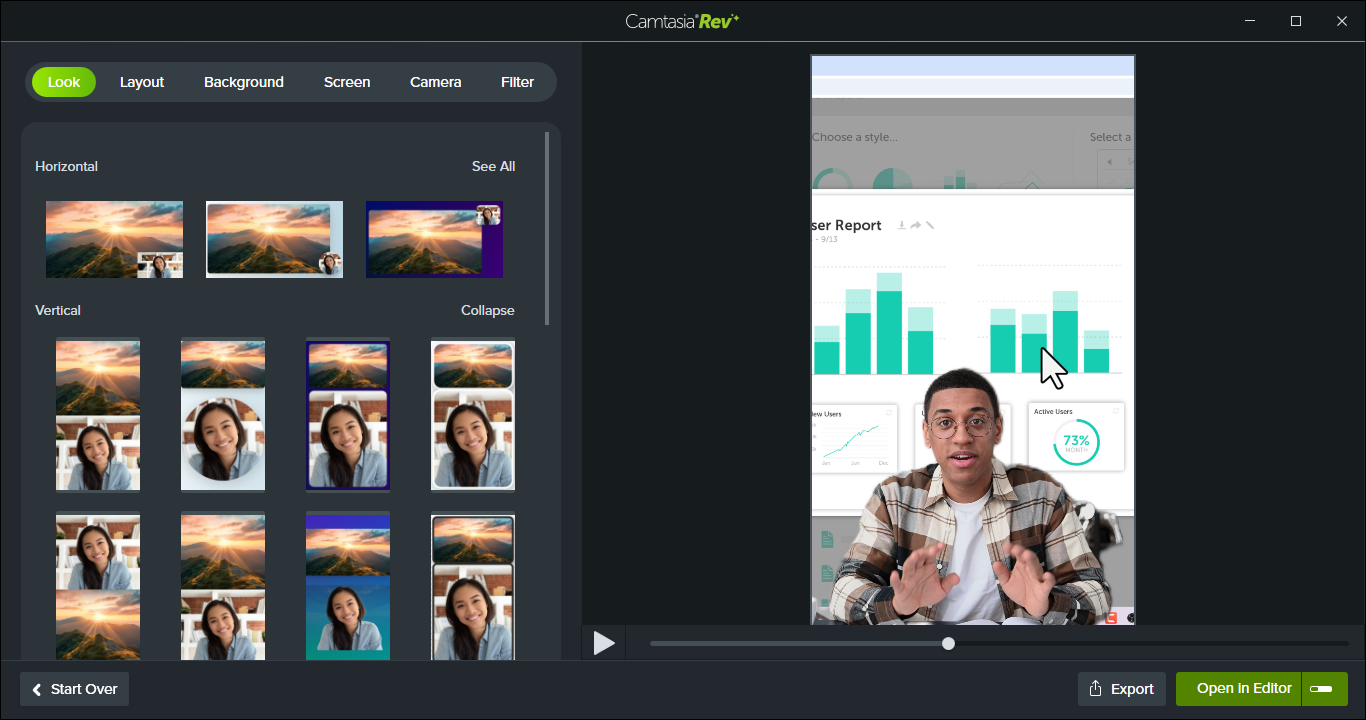
- On the Background tab, select from a variety of colors, patterns, and animations to make your content more visually engaging.
- On the Screen and Camera tabs, click to turn on or off effects to apply to the screen or camera video. The SmartFocus effect is great for vertical videos. It automatically applies zoom and pans to help focus viewers’ attention on the key action on the screen.
- Click the Open in Editor button to continue editing your video in Camtasia Editor.
The recording opens on the timeline. See Recommended Video Enhancements to discover some common techniques and enhancements to add to your vertical videos.
Note: If you are importing media into a new project and not using Camtasia Rev, first change your canvas dimensions to a vertical aspect ratio.
In a Camtasia Editor project, click the Canvas dropdown menu and select Project Settings. In the Canvas Dimensions dropdown, select 9:16 FHD (1080×1920).
Tips for Vertical Videos
- Consider your content’s position in the vertical frame. On most social media and video hosting platforms, part of your video content is covered up by the username, caption, and other platform options.
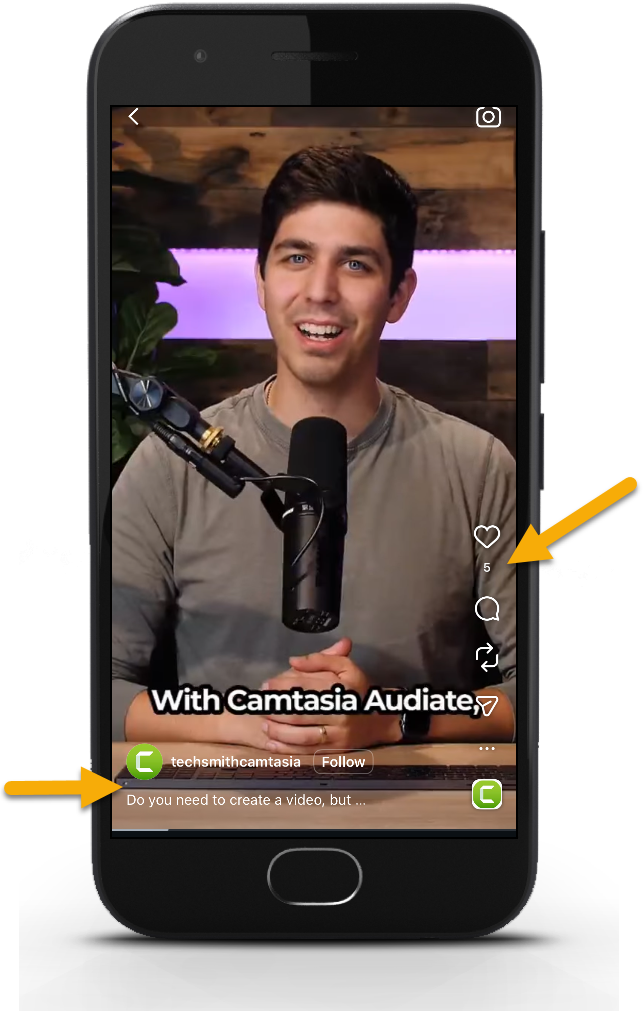
- Focus on the first 3 seconds. Start with a captivating hook, such as a common user problem, a question, or use bold text to immediately grab viewers’ attention.
- Practice concise storytelling. Keep your videos short and visually engaging to maintain interest.
- There are two approaches for recording footage for vertical videos:
- Record at a horizontal aspect ratio and then edit the footage to fit in a vertical frame. Creators often add zoom animations or crop the footage to focus on the key parts.
- Record at a vertical aspect ratio to preview exactly how the content will appear in a vertical frame.
- Make sure to incorporate trending audio and captions to improve accessibility and engagement.
Recommended Video Enhancements
Try adding these enhancements to your vertical videos in Camtasia Editor:
- Dynamic captions help with video engagement. If a viewer watches the video with the audio muted, they can still follow along with the captions. See Add Dynamic Captions.
- Animated titles and text on screen can hook viewers’ attention. See Add Text to Your Video.
- Combine sound effects with text, screenshots, products, or other visual overlays in the video. See Enhance Your Video with Camtasia Assets.
- Use transitions between clips for visual engagement or a smooth transition between scenes. See Add Transitions.
- Apply the SmartFocus effect in Camtasia Rev to automatically add zoom animations to focus attention on the key parts. See Zoom In to Focus Attention.
- Apply the AI Noise Removal effect to remove background noise and ensure quality audio.
Get Camtasia
Unleash the world’s most powerful screen recorder and video editor.
All Camtasia Tutorials