
TechSmith ®
TechSmith ®

Translate Your Script, Audio, and Captions

Learn how Camtasia Audiate can translate your video script to generate audio, AI avatars, and captions in other languages.

Translate Your Script, Audio, and Captions

Camtasia Audiate automatically translates your script to help you reach more audiences quickly. Use Audiate translation to:

  • Reproduce a video in a language you don’t speak.
  • Generate culturally relevant audio and video avatars for different audiences.
  • Caption a video in multiple languages to serve different locales.

Audiate currently supports translation for the following languages and dialects:

  • English (US, UK, Australian)
  • Spanish (Castilian, Argentinian, Chilean, Colombian, Mexican, Peruvian)
  • Brazilian Portuguese
  • Dutch
  • French
  • German
  • Italian

Note: Translation is available with subscription to Camtasia Pro.

Translate a Script

To translate a script in Audiate:

  1. Select File > Save to save the original project.
    Important: Translation will overwrite the existing script and audio. To preserve these for future use, save the original project before translating, then save a separate copy for the translated project.
  2. Select File > Save As to save a copy for the translated project. For example, add a language code to the filename to differentiate each translation, such as myproject_EN, myproject_DE, myproject_ES, etc.
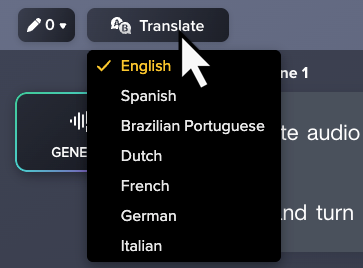
  3. Click Translate and select the desired language.
    Translate button and menu
    The translated script appears as white text.

After translation, you can:

Tip: Review the translated script

AI can make mistakes, so it’s recommended to review translations before exporting or generating audio.

Generate Audio from a Translation

Audiate’s text-to-speech turns your translated script into audio with a selection of realistic AI voices.

If the original project included audio, Camtasia asks if you want to generate audio to match the new language:
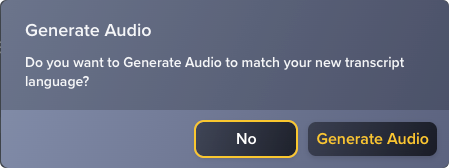
Prompt to regenerate audio
  • Click No to review the script first, or to review and select from available AI voices.
  • Click Generate Audio to automatically generate audio with a default AI voice.

If the original project did not include audio, or to generate audio for the first time:

  1. Click the Generate button.
    Generate button
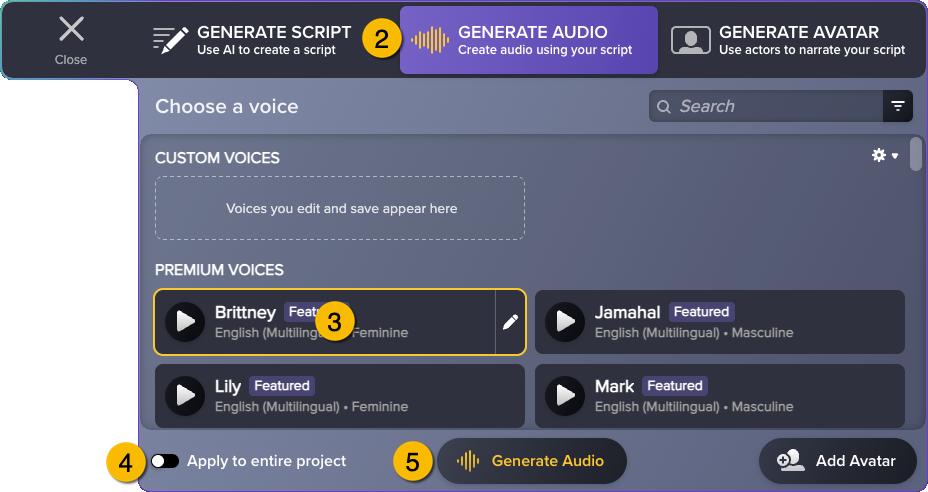
  2. In the Generate dialog, click the Generate Audio tab.
    Generate Audio window with labels
  3. Click to select a voice. For more details, see Generate AI Voices from Text or a Script.
  4. To generate audio with this voice for the entire project, enable the Apply to entire project toggle.
  5. Click the Generate Audio button.
    Audiate generates audio from the script text. The text changes from white yellow.

To export the translated audio, select File > Export > Export Audio.

Generate a Video Avatar

Generate an AI video avatar with natural, lifelike expressions to present the translated audio.

  1. Click the Generate button.
    Generate button
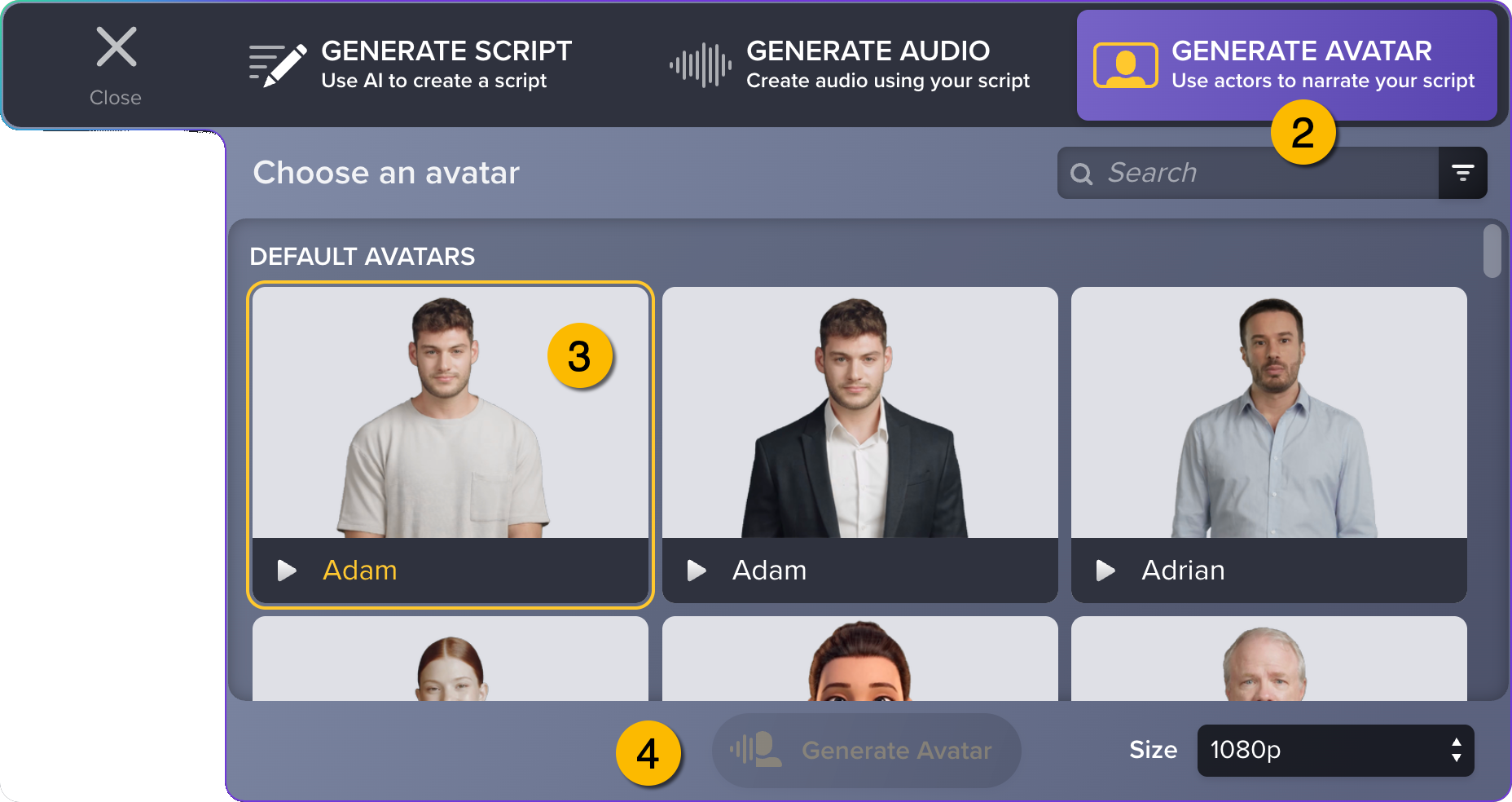
  2. In the Generate dialog, click the Generate Avatar tab.
    Generate Avatar window with labels
  3. Click to select an avatar.
  4. Click Generate Avatar.

To learn more, see Generate AI Avatars.

Generate Translated Captions

Audiate can instantly generate translated caption files (.srt) in one or more languages.

Upload .srt files with your video to a hosting service, such as Wistia or YouTube, so that viewers can select closed captions in the language of their choice.

To generate and export translated captions:
  1. Start with a project that has a script. Complete any of the following:
    • Import an audio or video file. Audiate automatically transcribes the audio.
    • Open an existing Audiate project.
    • Create a new project and type or paste in a script.
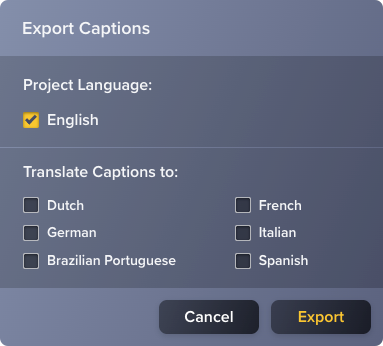
  2. Select File > Export > Export Captions.
  3. Select the desired languages and click Export.
    Export captions dialog
  4. In the Save As dialog, enter the desired file name and location, then click Save.
    Audiate translates and exports an .srt file for each language.

Tip: Review the translated captions

AI can make mistakes, so it’s recommended to review generated content before sharing. You can open, review, and edit .srt files with a text editor such as Notepad or TextEdit.
All Audiate Tutorials